Settings
 Fast Delivery
 Free Shipping
 Incoterms
 Payment Types


 Marketplace Product

Darkness Sensor and Relay to Turn the 12V Light Bulb ON/OFF Using BH1750
2026-04-29 | By Ron Cutts
License: GNU Lesser General Public License Bluetooth / BLE Power Supplies Arduino ESP32
In this tutorial, we will learn how to turn the 12V light bulb ON when darkness is detected, using a relay module and a BH1750 light sensor.
Watch the video!
Learn more about Visuino: What is Visuino
What You Will Need
Arduino UNO or any other Arduino board
12V Power supply / 12V Battery for the Light Bulb
Visuino software: Download here

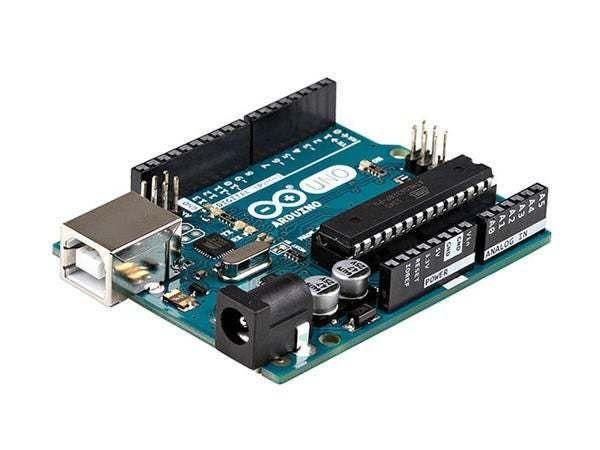
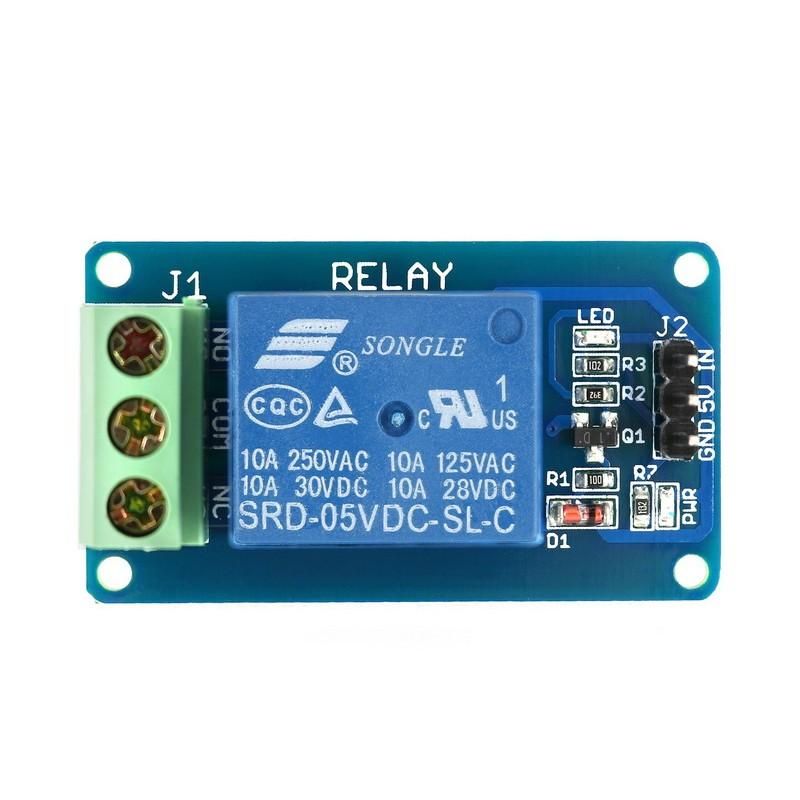
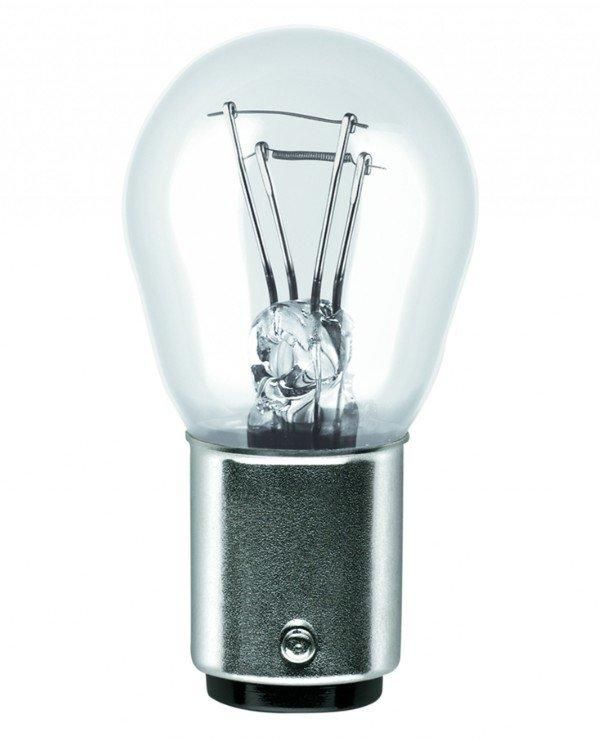
Circuit
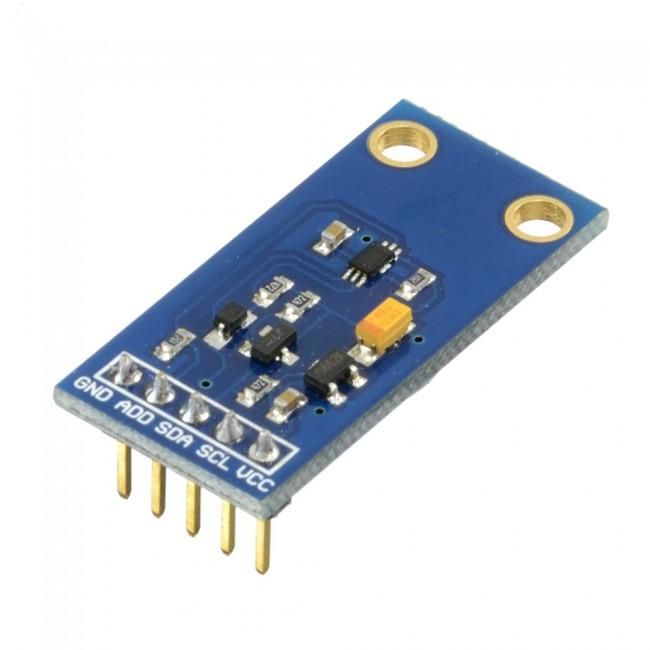
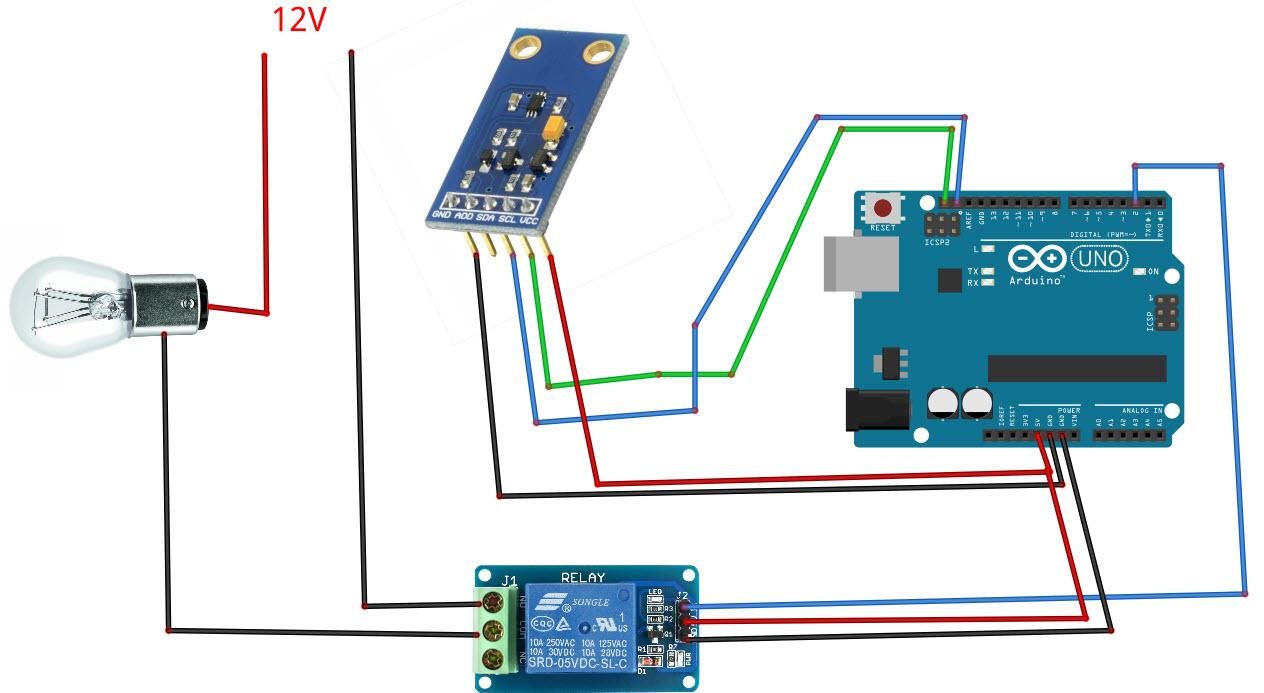
Connect Light Sensor pin [SCL] to Arduino pin [SCL]
Connect the light sensor pin [SDA] to Arduino pin [SDA]
Connect the light sensor pin [VCC] to Arduino pin [5v]
Connect the light sensor pin [GND] to Arduino pin [GND]
Connect the relay VCC pin(+) to Arduino 5V pin
Connect Relay GND pin(-) to Arduino GND pin
Connect the relay signal pin(S) to Arduino Digital pin [2]
Connect power supply 12V (+) to the Lamp positive (+)
Connect the power supply 12V (-) to the relay pin (NO)
Connect the lamp negative (-) to the relay pin (com).
Start Visuino, and Select the Arduino UNO Board Type
The Visuino: https://www.visuino.eu also needs to be installed. Download the free version or register for a free trial.
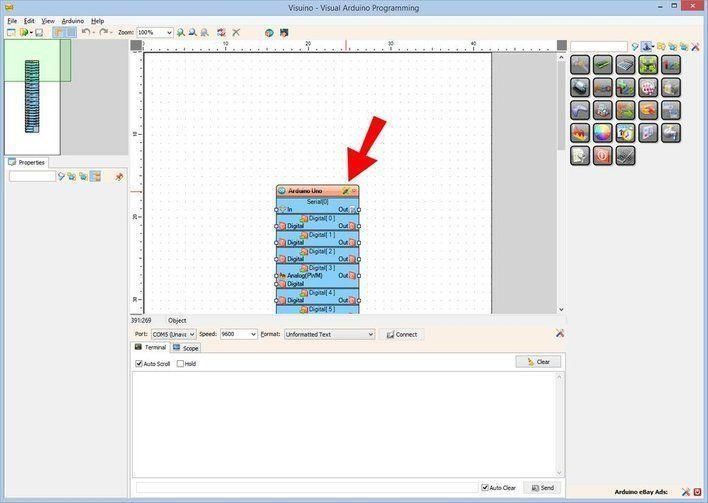
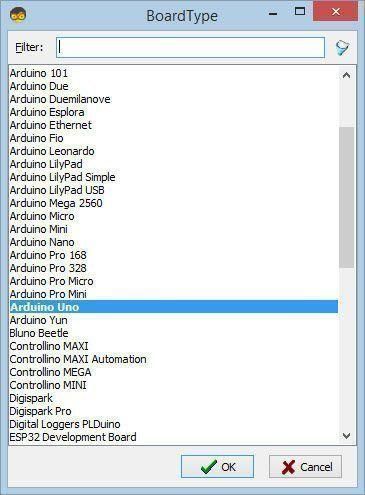
Start Visuino as shown in the first picture. Click on the "Tools" button on the Arduino component (Picture 1) in Visuino. When the dialog appears, select "Arduino UNO" as shown in Picture 2
In Visuino Add, Set & Connect Components
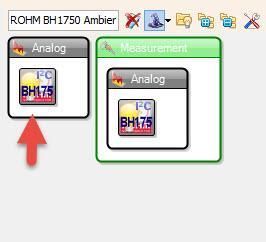
Add "ROHM BH1750 Ambient Light Sensor (I2C)" component
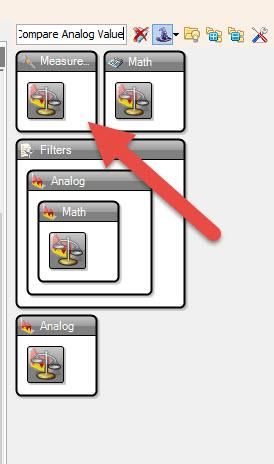
Add "Compare Analog Value" component
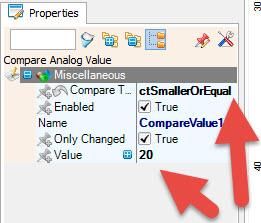
Select CompareValue1 and in the properties window set Compare Type to ctSmallerOrEqual and Value to 20
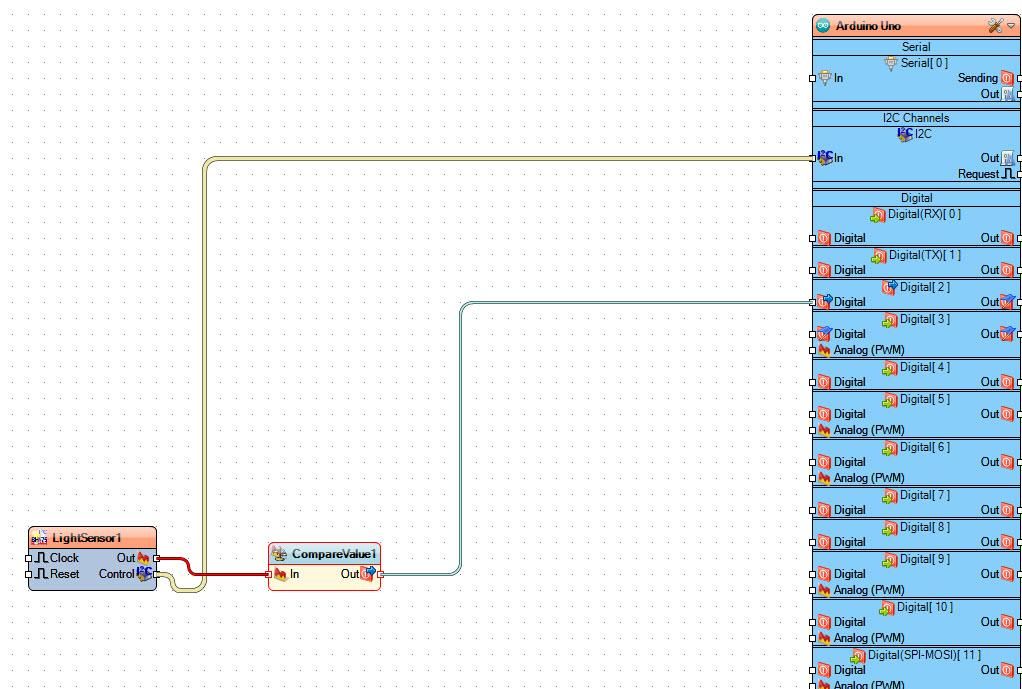
Note: the Value 20 is for darkness sensitivity; you can adjust this valueConnect "LightSensor1" pin I2C Control to Arduino I2C In
Connect "LightSensor1" pin Out to "CompareValue1" pin In
Connect "CompareValue1" pin Out to Arduino digital pin [2]
Generate, Compile, and Upload the Arduino Code
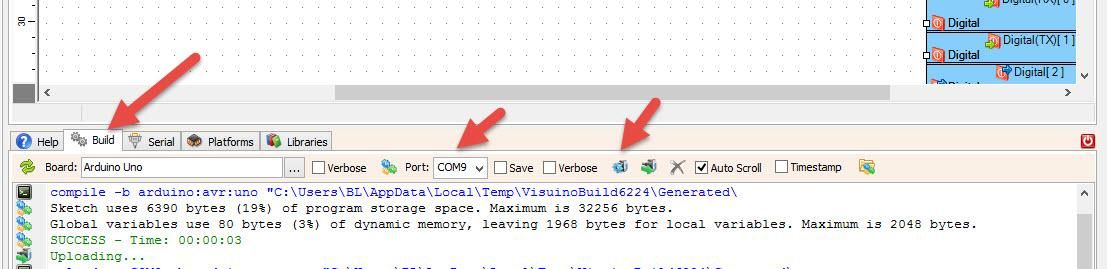
In Visuino, at the bottom, click on the "Build" tab, make sure the correct port is selected, then click on the "Compile/Build and Upload" button.
Play
If you power the Arduino module, the lamp will start to shine if you cover the sensor so that it can detect darkness.
Congratulations! You have completed your project with Visuino. Also attached is the Visuino project that I created for this. You can download it and open it in Visuino: https://www.visuino.eu