


 Settings
 Fast Delivery
 Free Shipping
 Incoterms
 Payment Types


 Marketplace Product

How to Wire & Use BH1750 Light Sensor (GY30 / GY302)
2026-04-21 | By Ron Cutts
License: GNU Lesser General Public License Bluetooth / BLE I2C / TWI Arduino ESP32
In this tutorial, we will learn how to quickly and easily use the BH1750 light intensity sensor with Arduino.
Watch a demonstration video.
What You Will Need
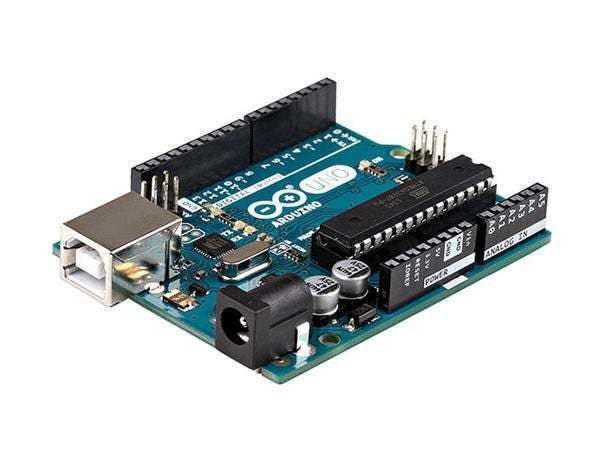
Arduino UNO (or any other Arduino)
Visuino program: Download Visuino
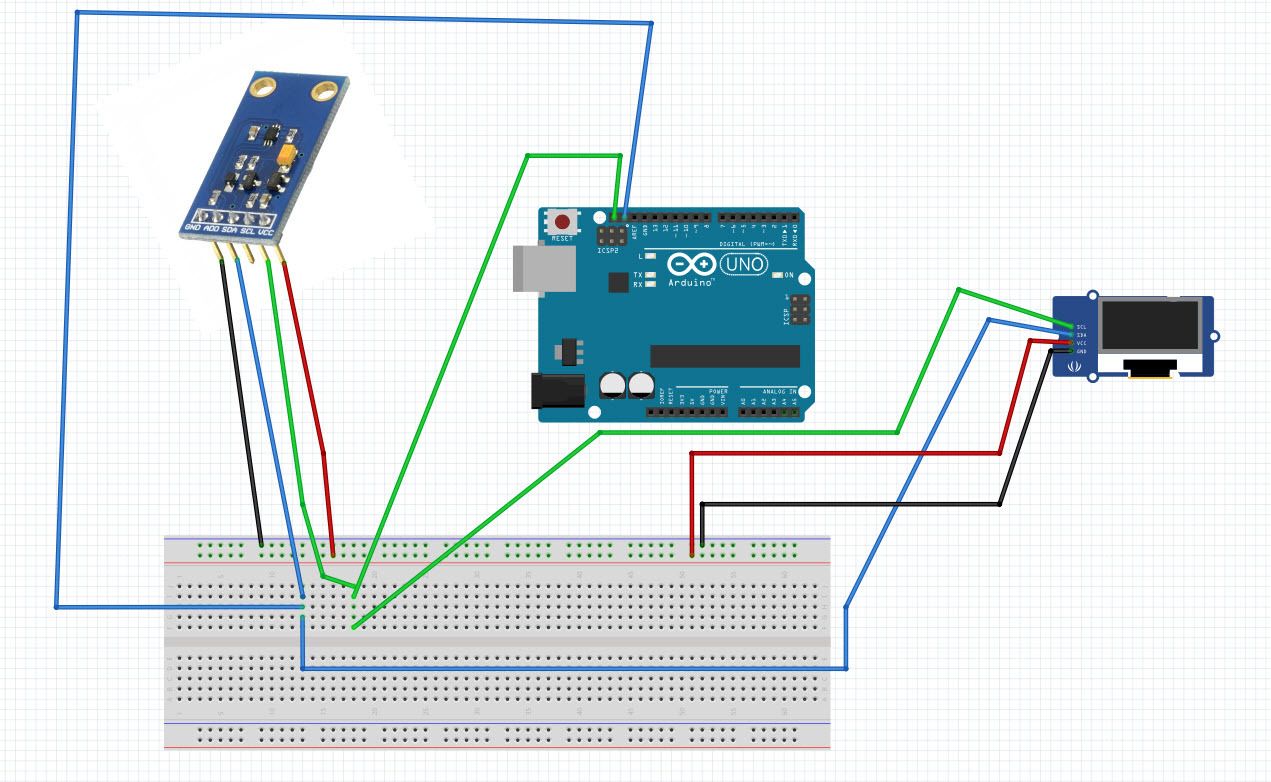
The Circuit
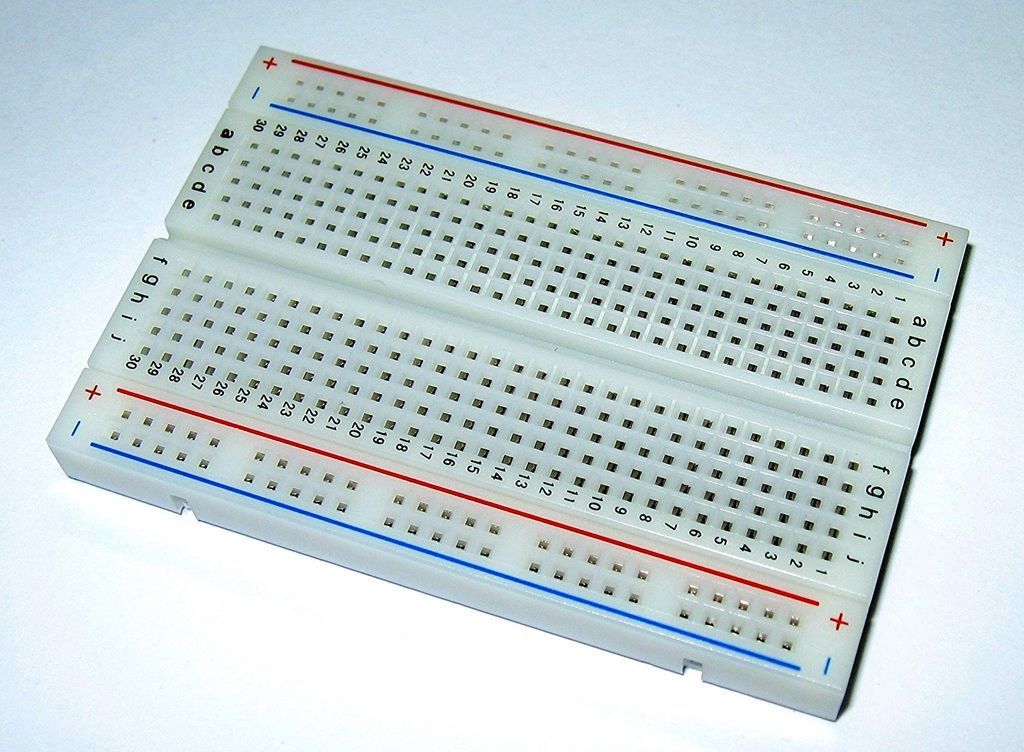
Connect Arduino positive pin [5V] to breadboard positive pin [Red Line]
Connect Arduino negative pin [GND] to breadboard negative pin [BlueLine]
Connect Arduino pin [SCL] to the breadboard
Connect Arduino pin [SDA] to the breadboard
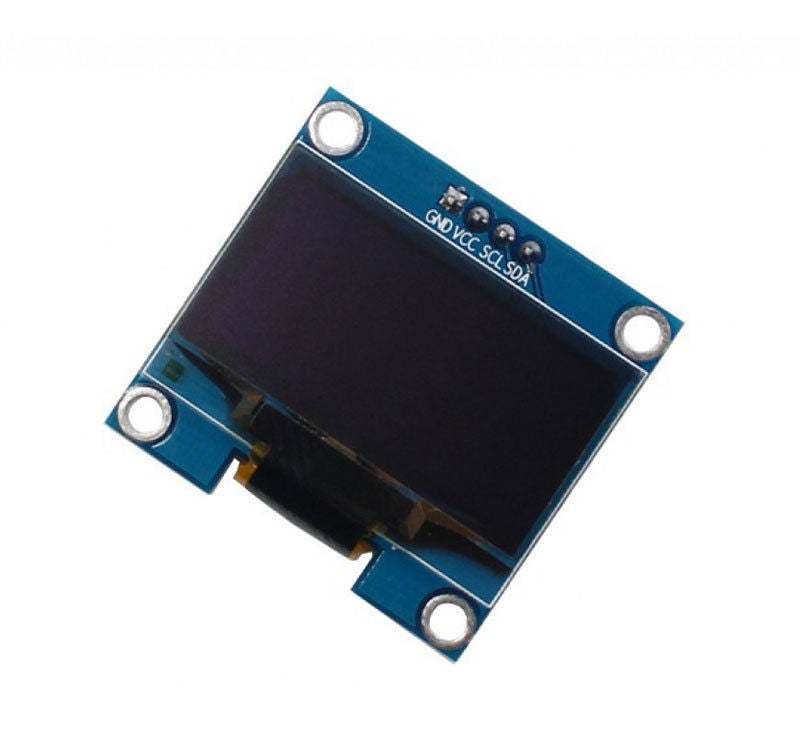
Connect OLED Display pin [SCL] to breadboard <same line where the Arduino pin [SCL] is connected
Connect OLED Display pin [SDA] to breadboard <same line where the Arduino pin [SDA] is connected
Connect OLED Display pin [VCC] to breadboard positive pin [Red Line]
Connect OLED Display pin [GND] to breadboard negative pin [BlueLine]
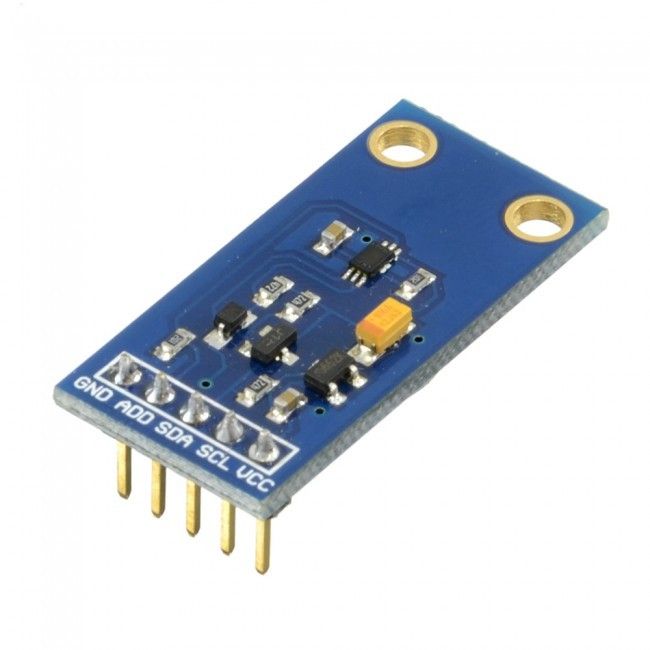
Connect the light sensor pin [SCL] to the breadboard <same line where the Arduino pin [SCL] is connected
Connect the light sensor pin [SDA] to the breadboard <same line where the Arduino pin [SDA] is connected
Connect the Light Sensor pin [VCC] to the breadboard positive pin [Red Line]
Connect the Light Sensor pin [GND] to the breadboard negative pin [BlueLine]
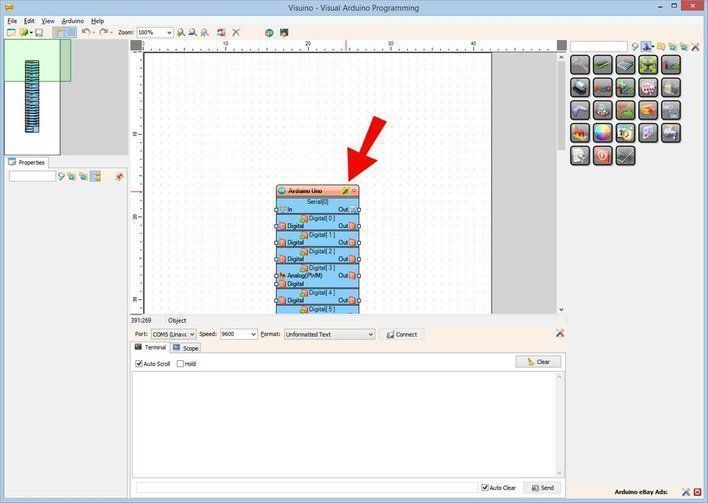
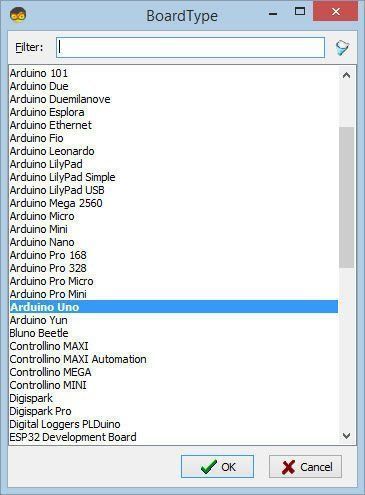
Start Visuino, and select the Arduino UNO board type.
To start programming the Arduino, you will need to have the Arduino IDE installed from here: http://www.arduino.cc/.
Please be aware that there are some critical bugs in Arduino IDE 1.6.6. Make sure that you install 1.6.7 or higher; otherwise, this will not work! If you have not done so, follow the steps to set up the Arduino IDE to program the Arduino UNO! The Visuino: https://www.visuino.eu also needs to be installed. Start Visuino as shown in the first picture. Click on the "Tools" button on the Arduino component (Picture 1) in Visuino. When the dialog appears, select "Arduino UNO" as shown in Picture 2
In Visuino, add & set components.
Add "ROHM BH1750 Ambient Light Sensor (I2C)" component
Add "SSD1306/SH1106 OLED Display (I2C)" component
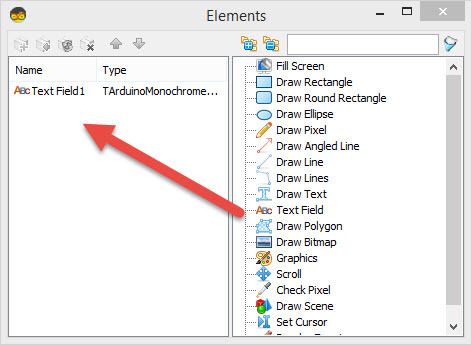
Double-click on "DisplayOLED1" component and in the "Elements" window, drag "Text Field" to the left
On the left side, then select "TextField1" and in the properties window set size:3
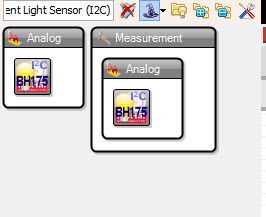
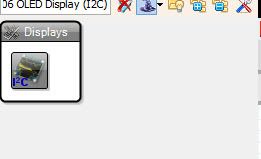
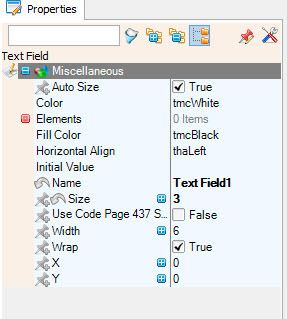
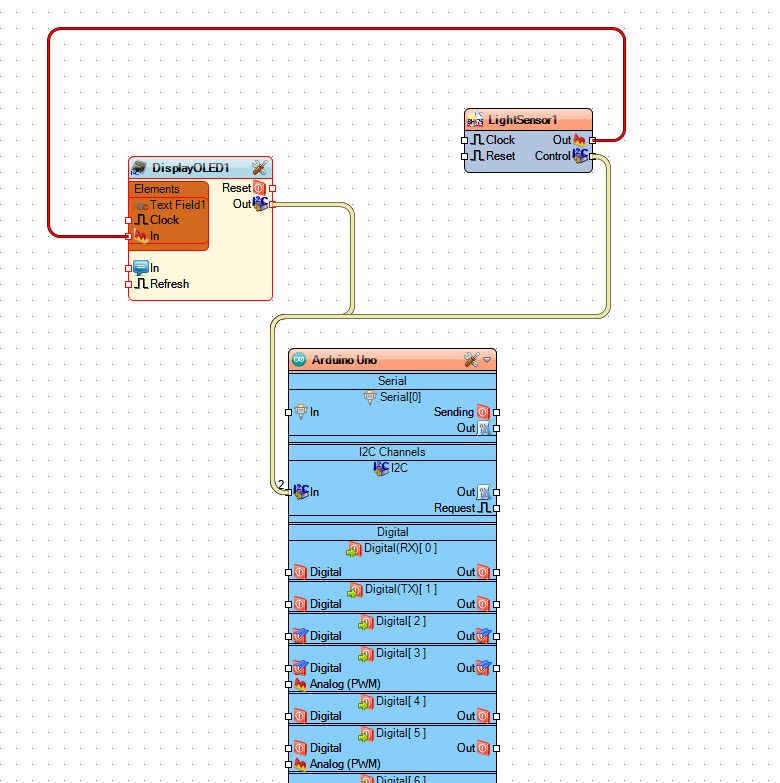
In Visuino Connect Components
Connect "LightSensor1" component pin [Control] to Arduino I2C pin [In]
Connect "LightSensor1" component pin [Out] to "DisplayOLED1>TextField1" component pin [In]
Connect "DisplayOLED1" component pin [Out] to Arduino I2C pin [In]
Generate, Compile, and Upload the Arduino Code
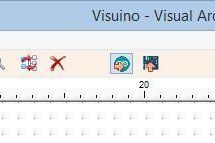
In Visuino, Press F9 or click on the button shown in Picture 1 to generate the Arduino code, and open the Arduino IDE
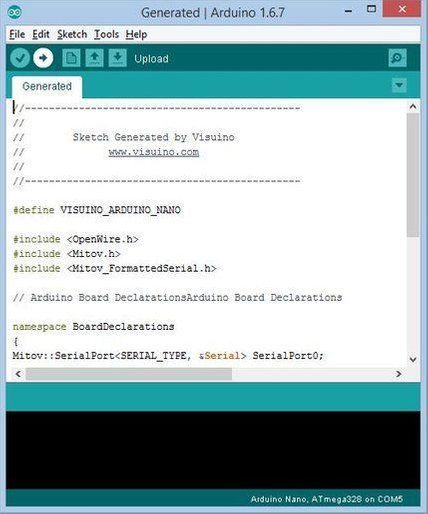
In the Arduino IDE, click on the Upload button to compile and upload the code (Picture 2)
Play
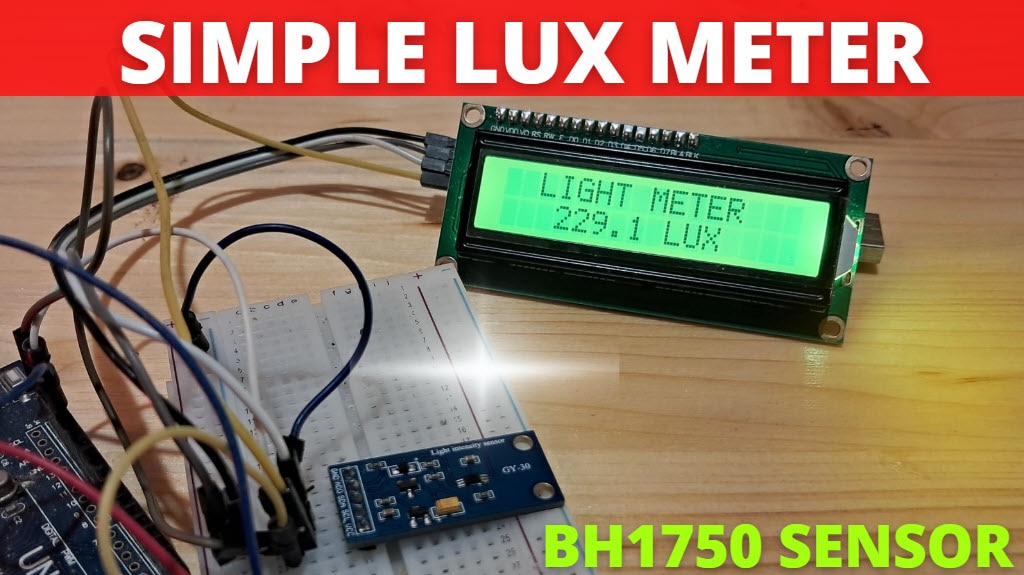
If you power the Arduino UNO module, the display will start to show a light intensity number that it gets from the light sensor.
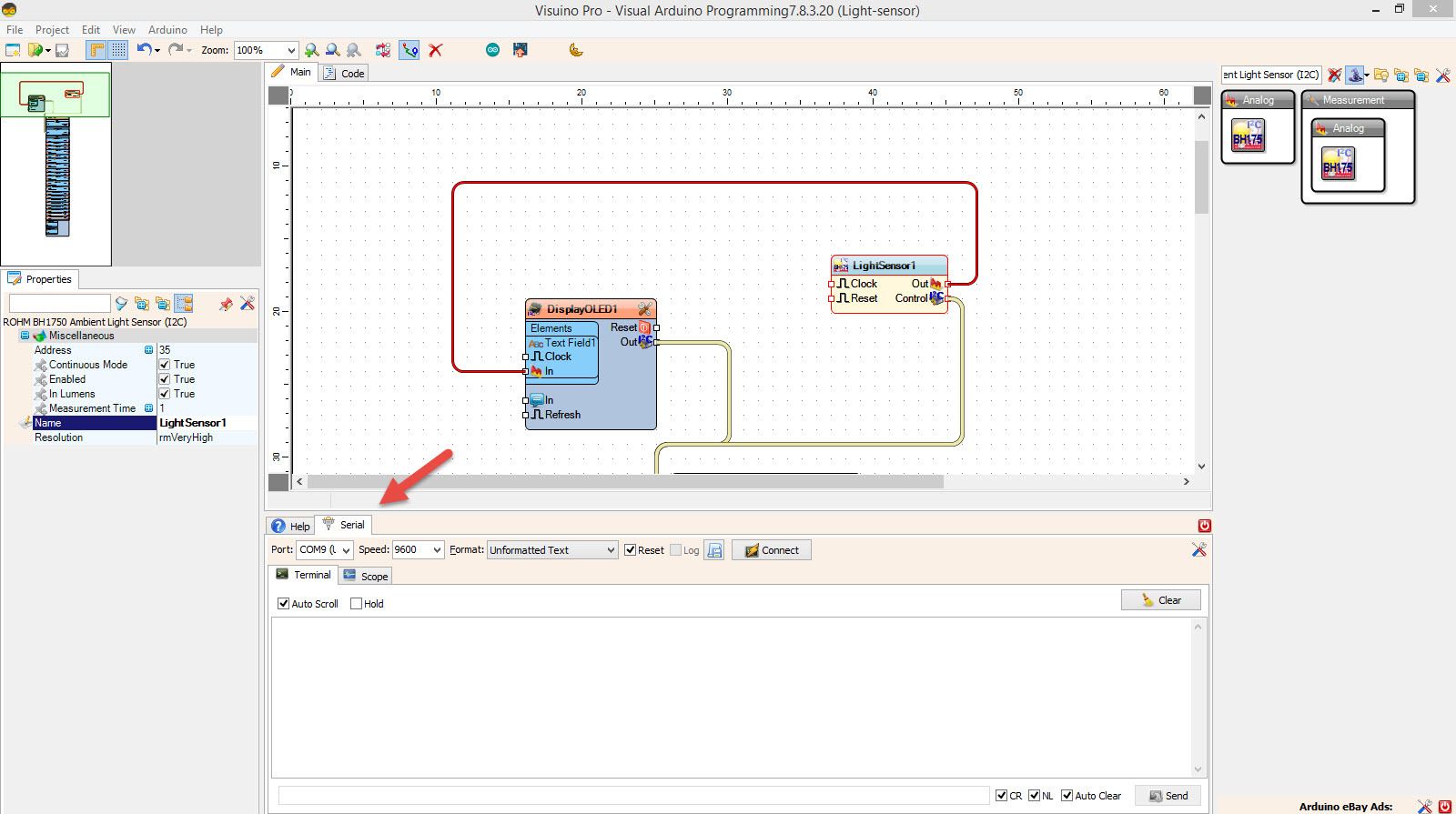
Note: If you don't have an OLED display, you can just wire the "ListSensor1" pin [Out] to Arduino Serial[0] pin [In] and monitor the Light intensity in the Visuino Serial Tab (Picture1)
Congratulations! You have completed your project with Visuino. Also attached is the Visuino project that I created for this. You can download it here
and open it in Visuino: https://www.visuino.eu









 Philippines